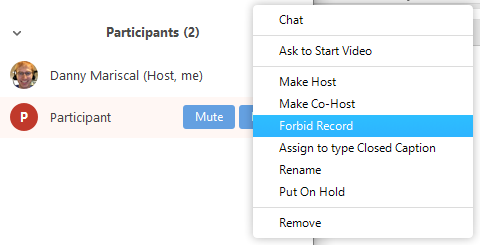

Assigning recording privileges to a participant
In a Zoom Meeting click on Manage Participants.
In the Participants menu navigate to the participant who will be granted recording privileges. Click More next to their name.
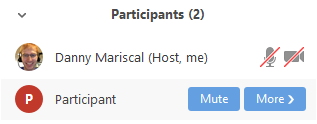
Select the option to Allow Record.
The participant will receive the following notification:


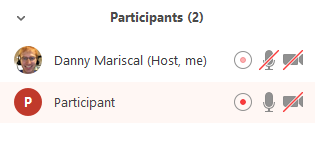
When a participant is recording, the participant menu will display a recording icon next to the participant's name.
To disable the participant's ability to record, click More next to the name, then click Forbid Record.
The participant will receive the following notification: